

Manager Interface
The manager interface is the central hub for managing your Deskulpt widgets, settings, and more.
Widgets
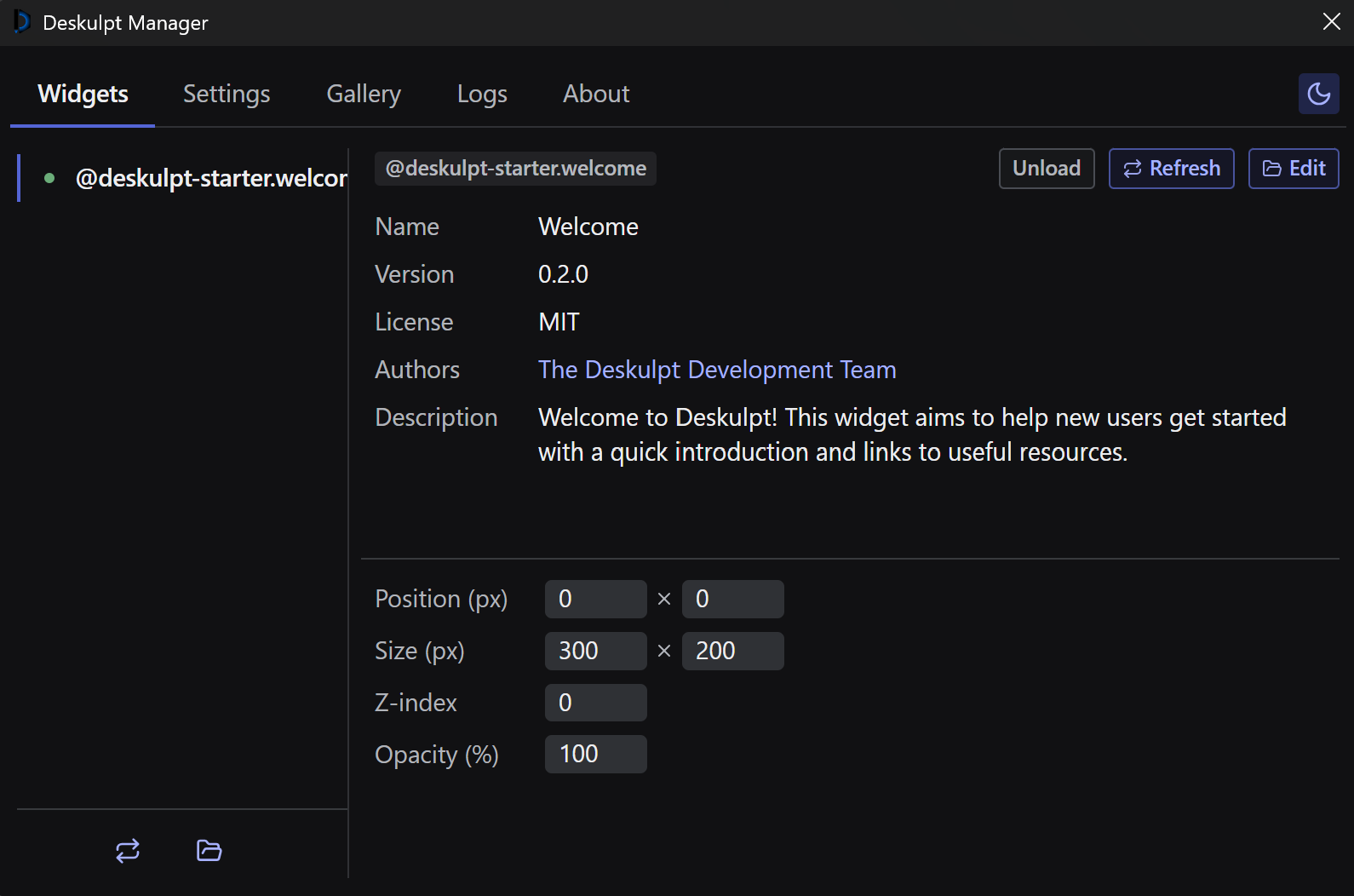
Global Actions
In the bottom-left corner of the widgets tab, you will find several global action buttons:
- Refresh All: Discover and refresh all widgets on your system.
- Open Widgets Directory: Open the directory where your widgets are stored.
Widget Actions
Click on a widget entry to view the details of a widget. From here, you can:
- Unload/Load: Temporarily remove the widget from your desktop without removing it from your system.
- Refresh: Refresh the widget to apply any changes or updates.
- Edit: Open the directory of this widget for editing.
You can also adjust the settings of each widget, including position, size, z-index, and opacity. Note that position and size can be adjusted directly on the desktop by dragging and resizing the widget as well.
Settings
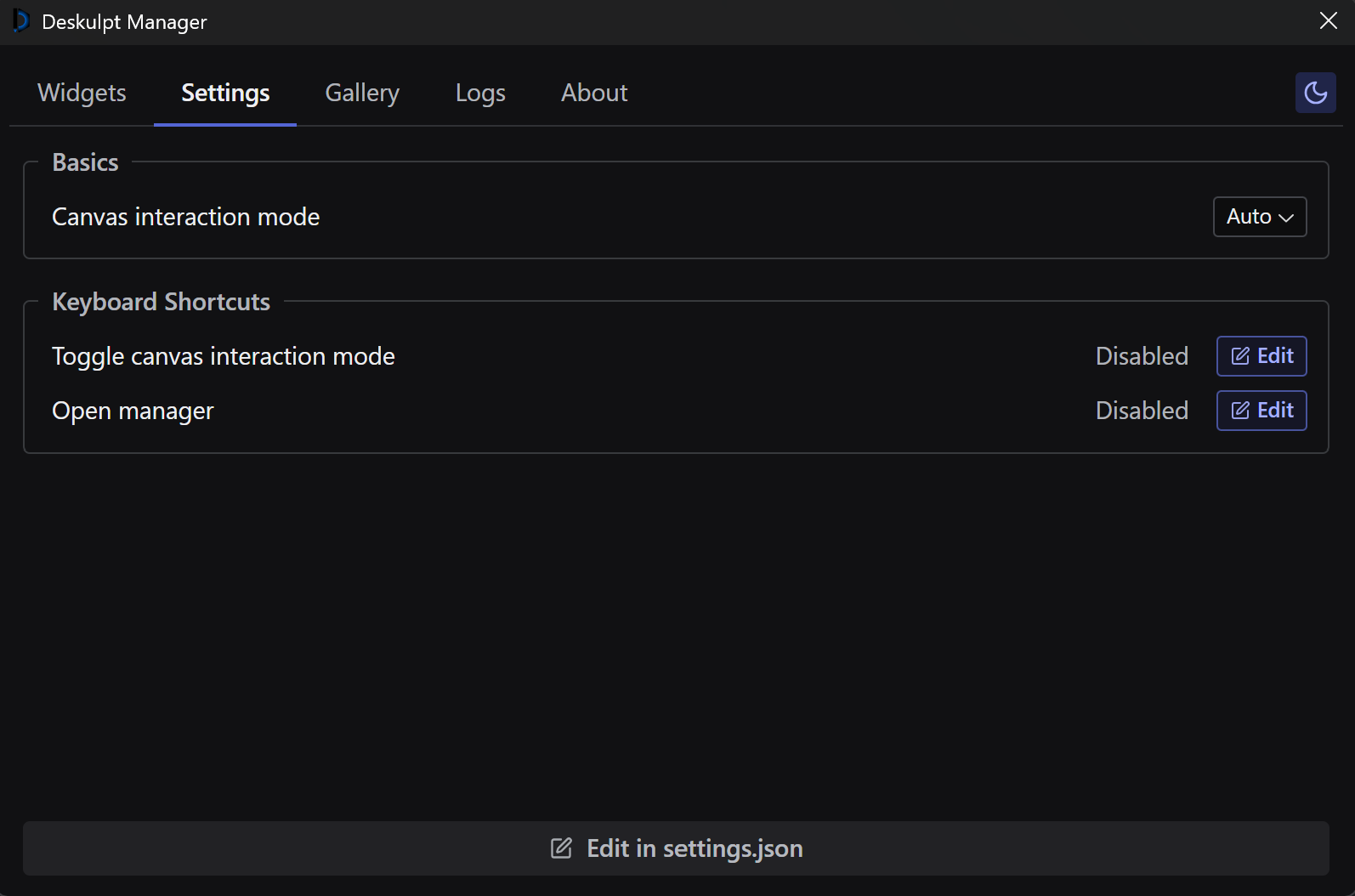
The settings tab allows you to configure global settings for Deskulpt, including:
Canvas Interaction Mode
Choose how you want to interact with the Deskulpt canvas.
- Auto: The default mode where Deskulpt detects your mouse movement and lets you interact with the widgets and your desktop seamlessly.
- Float: The widgets are interactable, but the desktop is not.
- Sink: The desktop is interactable, but the widgets are not.
If the auto mode does not work well on your system, you can try manually switching between float and sink modes. If none of your widgets need interaction, you can also leave it always in sink mode.
Keyboard Shortcuts
Configure global keyboard shortcuts for Deskulpt actions, including:
- Toggle Canvas Interaction Mode: Quickly switch between float and sink modes. This is useful when you are not using the auto mode. It has no effect when auto mode is enabled.
- Open Manager: Open the Deskulpt manager interface from anywhere.
Gallery
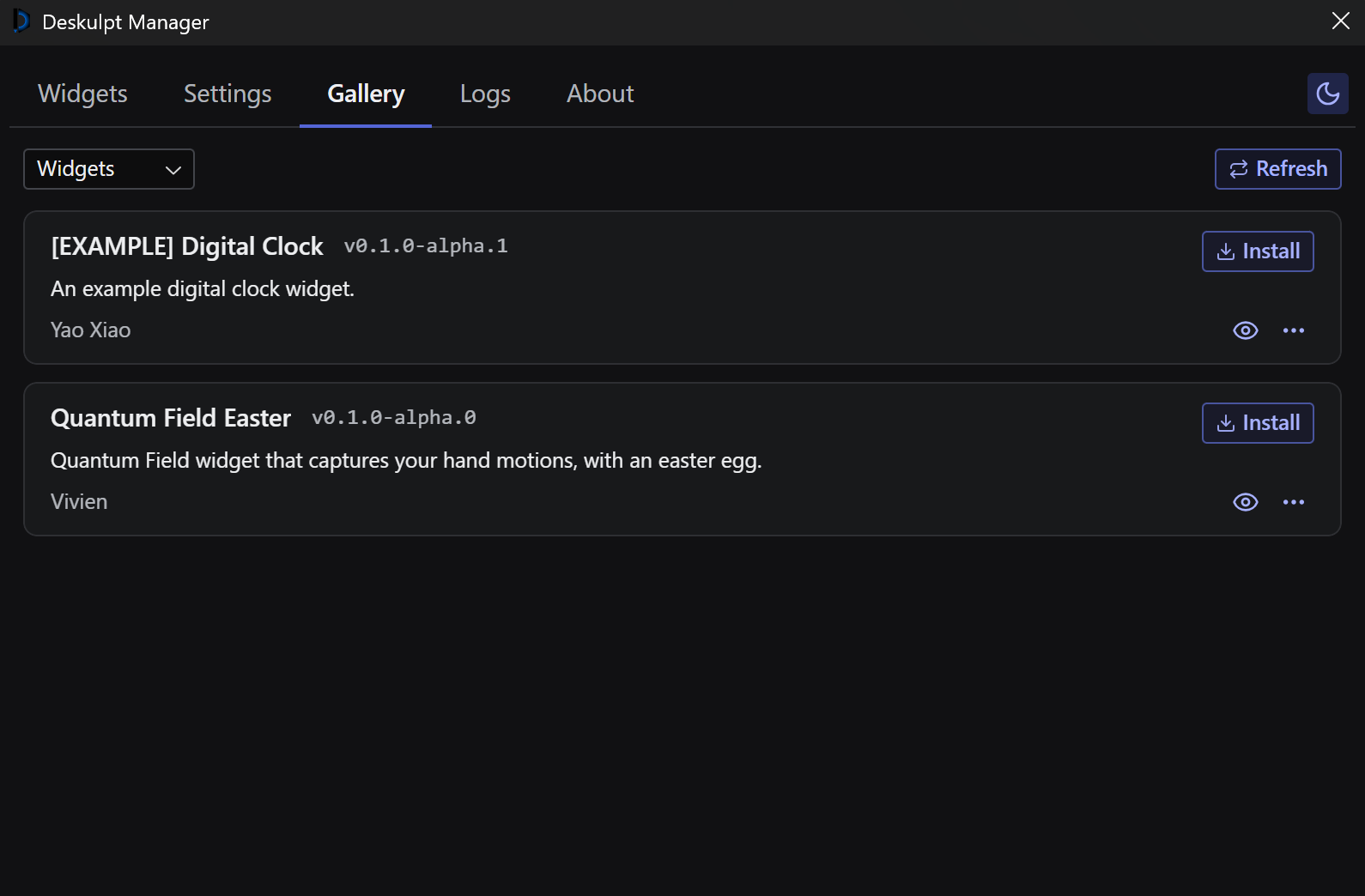
The gallery tab allows you to browse through the Deskulpt widgets gallery and install widgets to your system with just a few clicks.
- Install: For widgets that are not yet installed on your system, click the install button on a widget card to download and install the widget.
- Uninstall: For widgets that are already installed on your system, click the uninstall button on a widget card to remove the widget from your system.
- Update: For widgets that are already installed on your system but have a newer version available, click the update button on a widget card. Then you can either select "Update" to update to the latest version or "Uninstall" to remove the widget instead.
- View: Click the "Eye" icon on a widget card to view more details about the widget. You can also install/uninstall/update the widget from this details view.
- More > Copy widget ID: Click the three dots on a widget card and select "Copy Widget ID". This will copy the unique widget ID to your clipboard, as it should appear in the widgets directory when you install it.
- More > Install another version: If the widget has more than one version available, click the three dots on a widget card and select "Install another version". This will pop up a version selector. Click on the version you are interested in, and a details view of that version will appear. You can install that specific version from there.
Logs
The logs tab displays runtime logs from Deskulpt and the widgets. Deskulpt keeps logs for 10 days. You can clear the logs manually by clicking the "Clear" button in the top-right corner.
When you encounter issues with Deskulpt and need to report them, including relevant logs can help developers diagnose and fix the problems more effectively. You can click the "Open" button in the top-right corner to open the logs directory, and attach all relevant log files when reporting the issues.
About
The about tab provides information about the current version of Deskulpt you are using. You can also find some quick links there.